

How to Remove Malware Pop-Ups on Android Phones
How to Remove Malware Pop-Ups on Android Samsung, Google Pixel, Nokia Phones
Is your Android showing constant pop-ups or ads? Learn how to remove malware from your Android phone safely.
Pop-Up Hell: Ending the Android Malware Nightmare
Are random pop-ups ruining your Android Samsung Galaxy, Google Pixel experience? You’re not alone. Many Android users encounter malware pop-ups caused by hidden adware apps disguised as games, “cleaners,” or “boosters.” These malicious apps don’t improve your phone—they slow it down, drain the battery, and flood your screen with ads. Here’s how to remove malware pop-ups from your Android phone and protect your data with Happytel’s expert support.
🔍 Why Is This Happening?
Unwanted pop-ups usually start after downloading a new app that secretly contains adware. Common offenders include fake system utilities like “Cleaner,” “Booster,” or “File Organiser.” These apps look harmless but hide advertising software that keeps showing ads—even when you’re not using them.
🧰 Step 1: Reboot Your Phone in Safe Mode
The best first step to identify the problem is restarting your device in Safe Mode. In this mode, only essential Android apps run, temporarily stopping pop-ups.
To enter Safe Mode:
-
Hold the Power and Volume Down buttons together.
-
Tap and hold the Power off icon until “Safe Mode” appears.
-
Tap to confirm.
Once in Safe Mode, you’ll be able to safely identify which app is causing the pop-ups. To exit, just restart your phone normally.


🗑️ Step 2: Find and Uninstall Suspicious Apps
Go to Settings → Apps → Sort by Last Used. Malware apps are usually among the most recently used. Look for fake system apps like “Google Play Protect Service” or any app with a mismatched name and icon. Tap Uninstall or Disable to remove it.

Pro tip: In Safe Mode, check app details in the Play Store. If the app doesn’t appear legitimate, delete it immediately.


🌐 Step 3: Disable Chrome Notifications
Many Android pop-ups come through your web browser. Open Chrome → Settings → Notifications, then turn off Show notifications. This will block unwanted ad alerts even when browsing.

🔄 Step 4: Factory Reset (Last Resort)
If the malware persists, perform a factory reset. This will erase all data but fully remove malware or adware. Back up your contacts, photos, and files first. After resetting, only reinstall trusted apps from Google Play.
🧠 Step 5: Prevention Tips
-
Download apps only from verified sources.
-
Avoid unnecessary “cleaner” or “booster” apps.
-
Regularly check and delete unused apps.
-
Don’t click suspicious ads or links while browsing

⚙️ Professional Malware Removal at Happytel
If malware or pop-ups make your phone unusable, Happytel’s malware removal service can help. Our technicians safely identify and remove malicious apps without compromising your important data.
Visit your nearest Happytel store today for Android malware removal, phone repair, and system cleaning. Simply search “Happytel phone repair near me” or head to happytel.com to book an appointment.
By following these steps—or visiting your local Happytel—you can remove malware pop-ups from your Android, keep your data secure, and enjoy a smooth, ad-free experience again. Visit your nearest Happytel store for expert malware and adware removal services.

Switching to a new phone should be exciting — not stressful. At Happytel, we provide a fast, secure, and professional data transfer service so you can move everything from your old device to your new smartphone with ease. Whether you’re upgrading, changing brands, or dealing with a damaged phone, our expert technicians ensure your mobile data transfer is completed safely and efficiently. 🔑 What is Data Transfer? Data transfer (phone data transfer service) is the process of moving important information from one device to another. At Happytel, we securely transfer: Photos and videos Contacts and call logs Messages and chat history...

The Timeless Charm of Norigae: Tradition Meets Modern Style The norigae (노리개) is one of Korea’s most exquisite traditional ornaments — a decorative tassel that has adorned hanbok for centuries. Once a cherished symbol of luck, prosperity, and elegance, the norigae is now being rediscovered as a fashion-forward accessory for modern lifestyles, from bags to tech devices like the iPhone, Samsung, Pixel, and other phones. What Makes a Norigae Special? A traditional norigae usually consists of four parts: Ddidon – the hook or clasp Paemul – the central ornament or charm Maedeup – the decorative knot Sul – the silk...
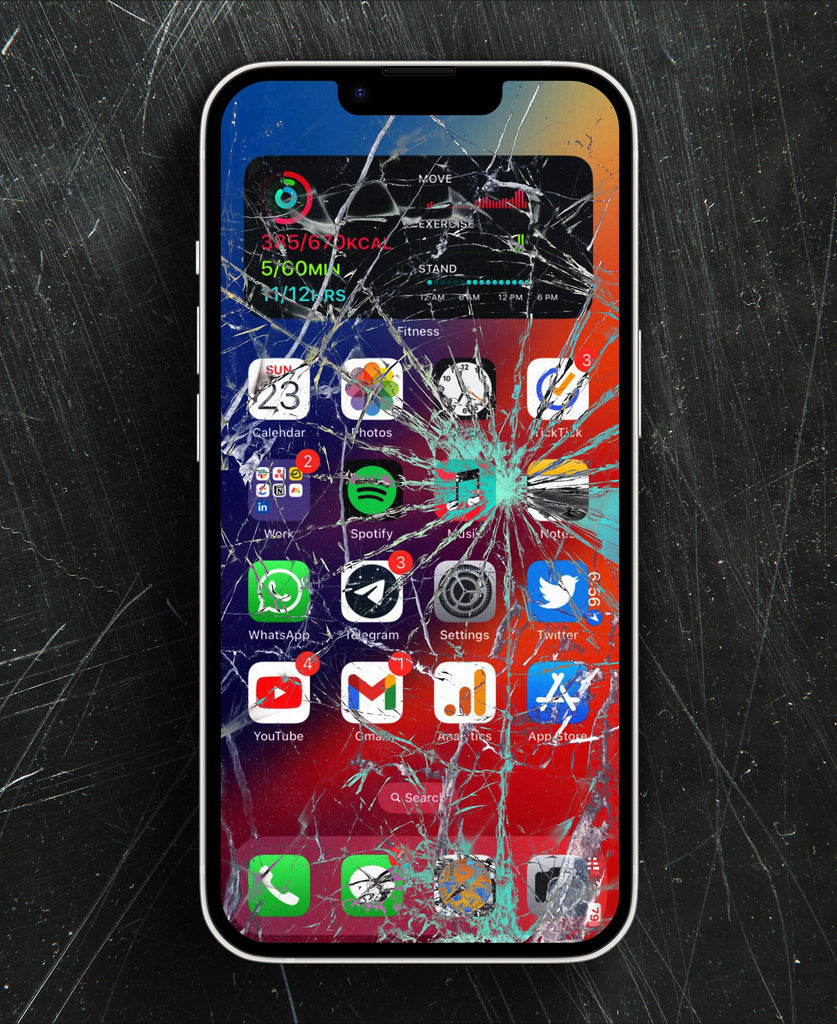
OEM vs. InCell iPhone Screens: What You Need to Know When your iPhone screen cracks, choosing the right replacement is crucial. With options like Apple genuine screens, OEM replacements, and InCell screens, it can be confusing. Understanding the differences ensures you get the best balance of quality, durability, and value. What is an OEM iPhone Screen? An OEM screen is made to match the original specifications of your iPhone. These high-quality screens provide: True colour accuracy and brightness Full compatibility with features like 3D Touch, True Tone, and Face ID Durable performance to last longer than cheaper alternatives OEM screens...